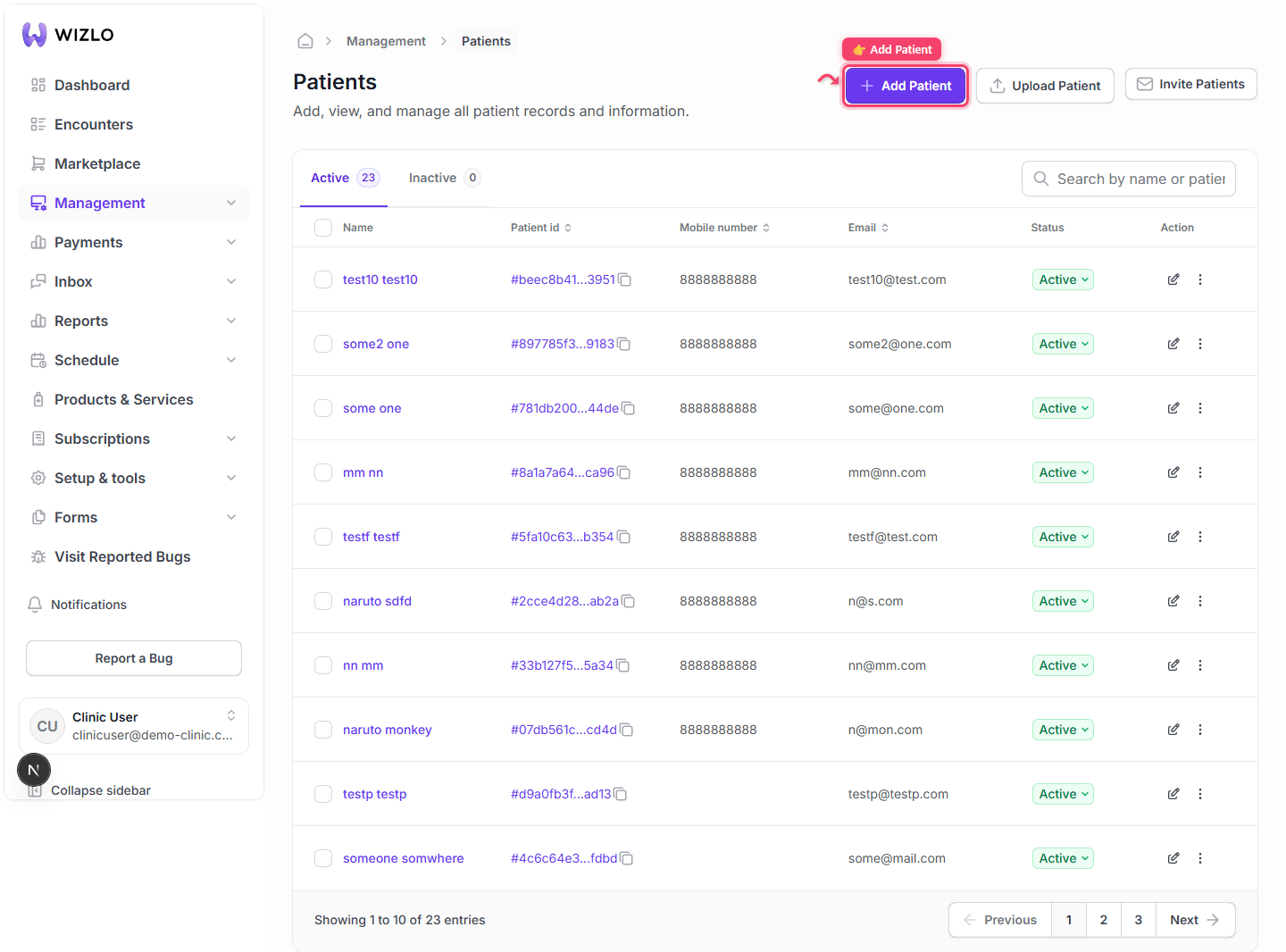
How do I add a new patient?
Open the Patients screen (sidebar: Management → Patients, or go directly to /patients — breadcrumb reads Home > Management > Patients), then click the purple 'Add Patient' button in the top-right (next to 'Upload Patient' and 'Invite Patients'; a real <button>, not a tooltip-trigger wrapper).
Step 1: Open the Patients screen (sidebar: Management → Patients, or go directly to /patients — breadcrumb reads Home > Management > Patients), then click the purple 'Add Patient' button in the top-right (next to 'Upload Patient' and 'Invite Patients'; a real <button>, not a tooltip-trigger wrapper).
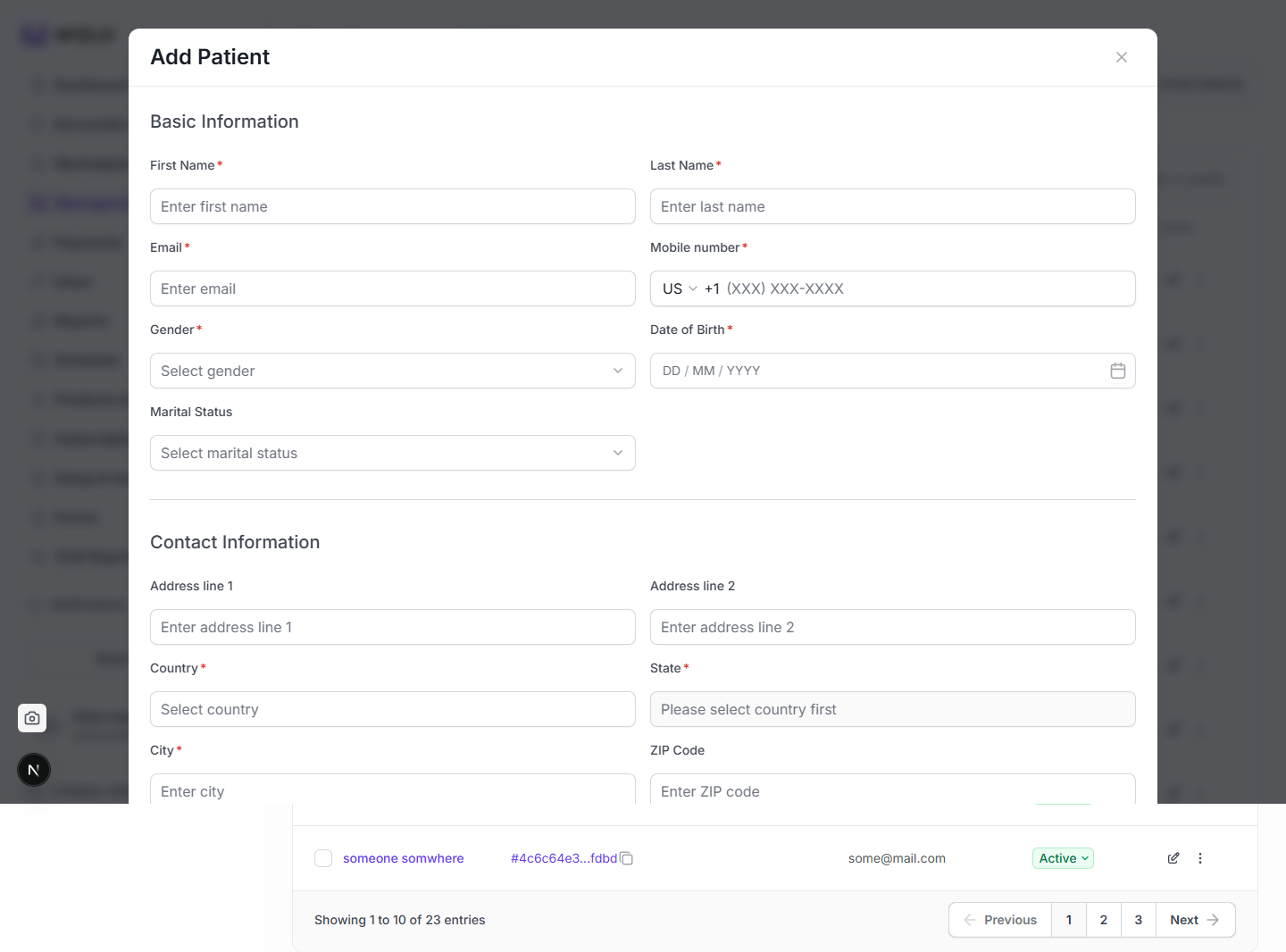
Step 2: The 'Add Patient' modal opens with a 'Basic Information' section (First Name*, Last Name*, Email*, Mobile number*, Gender*, Date of Birth*, Marital Status) followed by a 'Contact Information' section (Address line 1/2, Country*, State*, City*, ZIP Code, and more fields below the fold). Fill in the required (*) fields and use the modal's Confirm/Save button at the bottom to create the patient.