How do I add / invite a staff member?
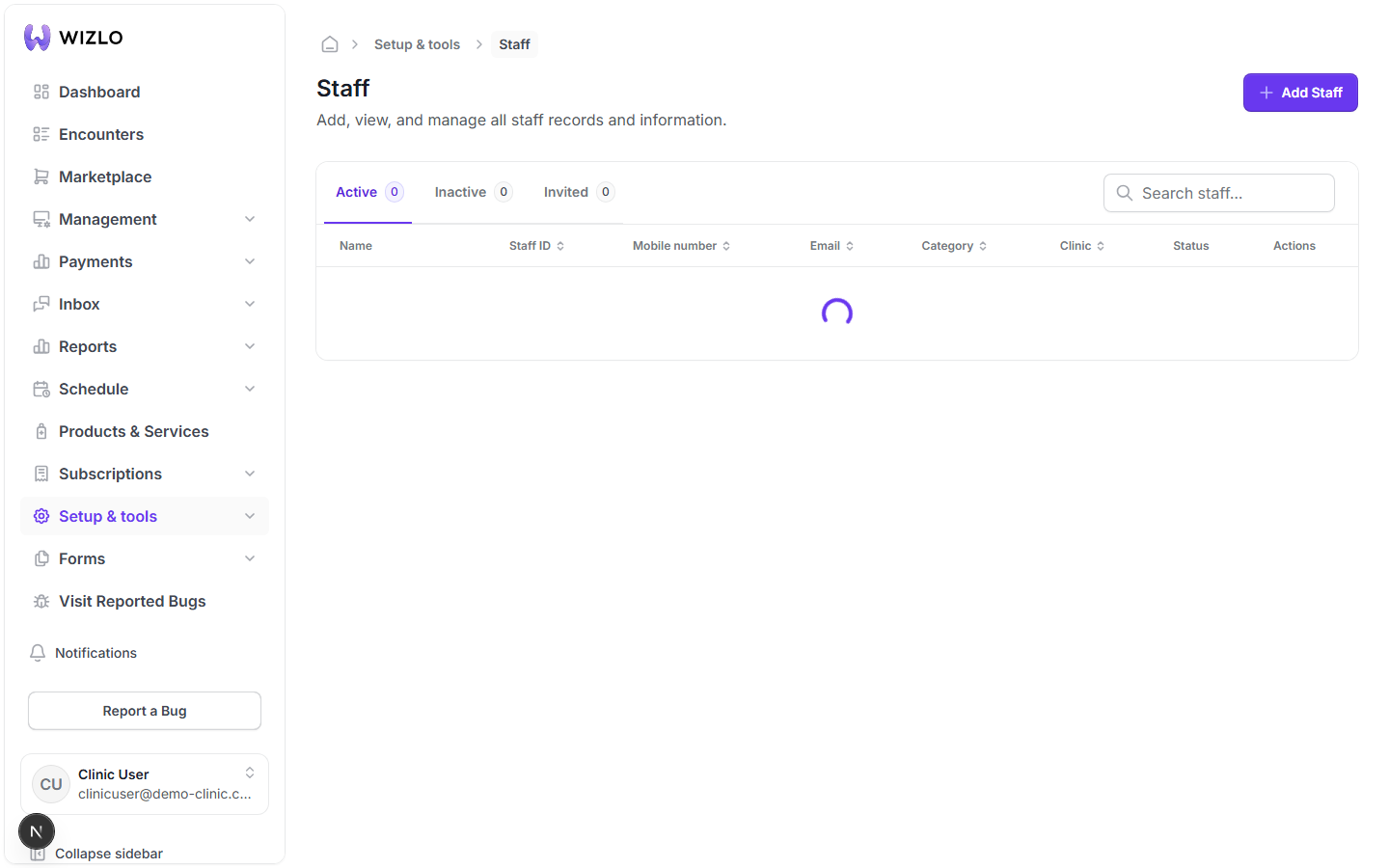
Go to 'Setup & tools' → 'Staff' (or navigate to /setup/staff). This route requires the 'staff' permission subject (verified live: the current test account lacks it and is redirected away, same as the Roles route).
Step 1: Go to 'Setup & tools' → 'Staff' (or navigate to /setup/staff). This route requires the 'staff' permission subject (verified live: the current test account lacks it and is redirected away, same as the Roles route).
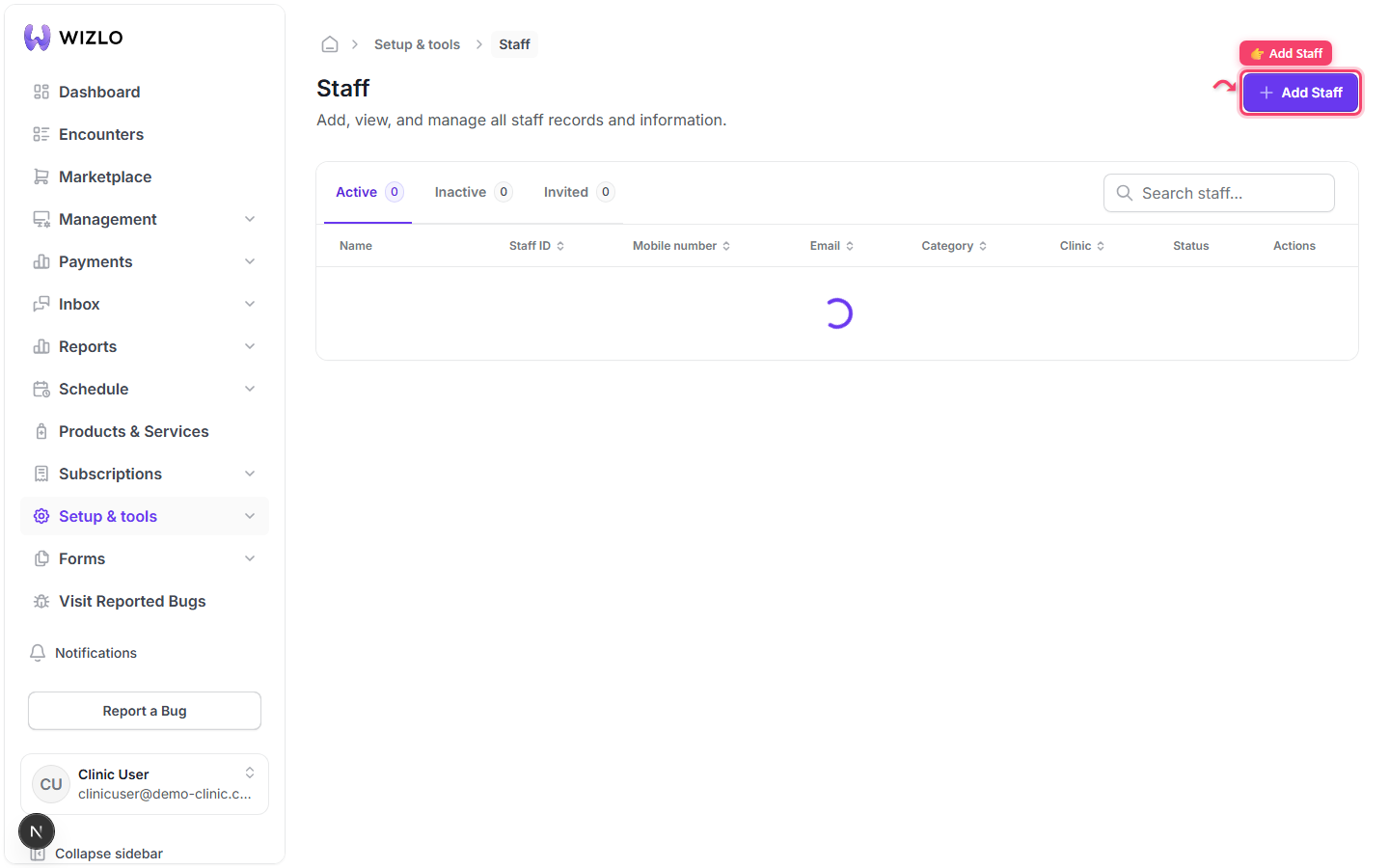
Step 2: Click the 'Add Staff' button (top right of the page, plus-icon; only rendered when you hold the staff-create permission). This opens the 'Add Staff' modal.
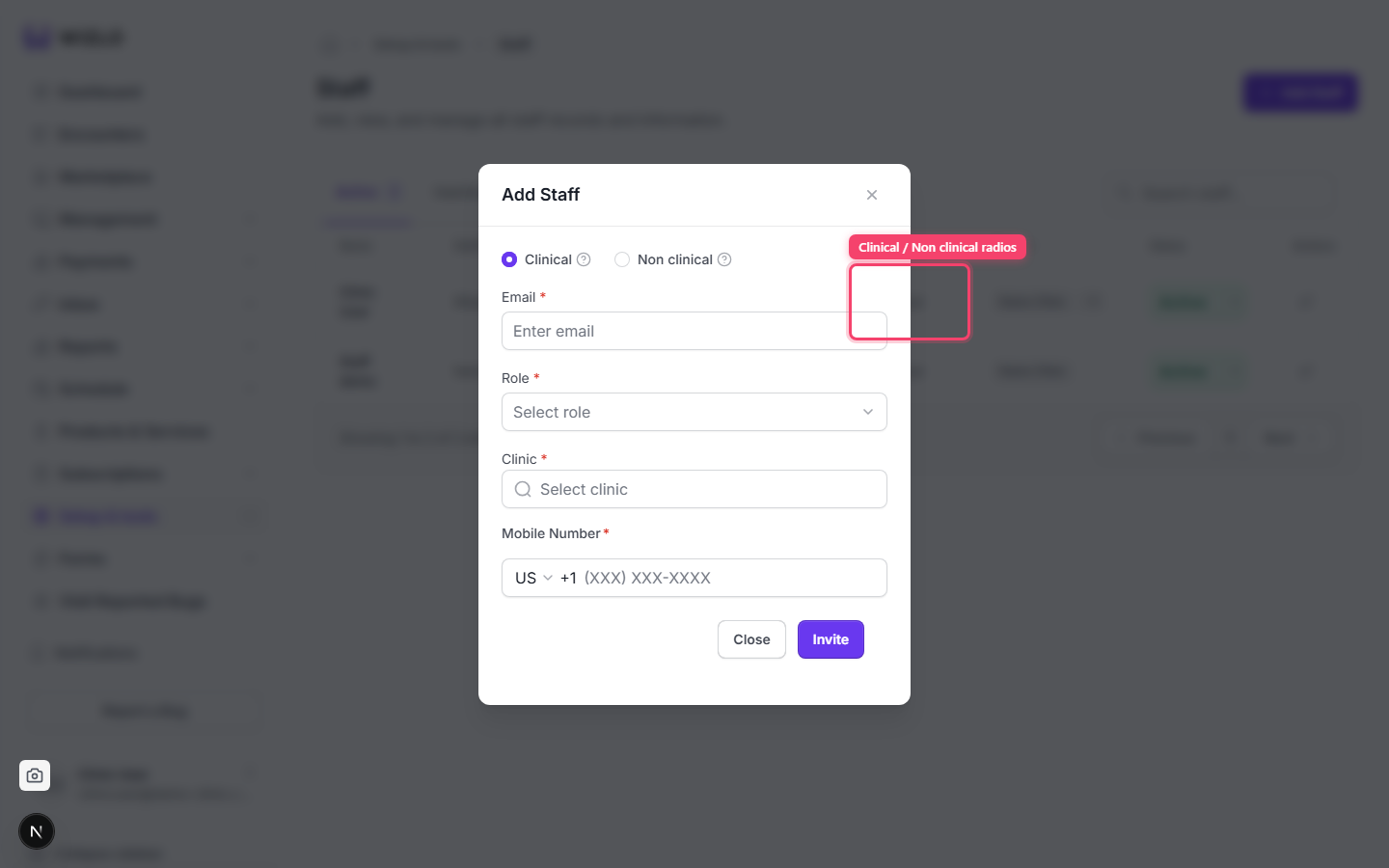
Step 3: Choose 'Clinical' or 'Non clinical' via the radio buttons (each has a small (?) help icon next to it — that help icon is a bare TooltipTrigger with no accessible label, so it can only be described visually).
Step 4: Fill in: Email (required, becomes locked once saved), Role (required dropdown — the list excludes any role literally named 'Patient'), Clinic (required multi-select; hidden entirely for provider-network tenants), and Mobile Number (required, with country-code picker).
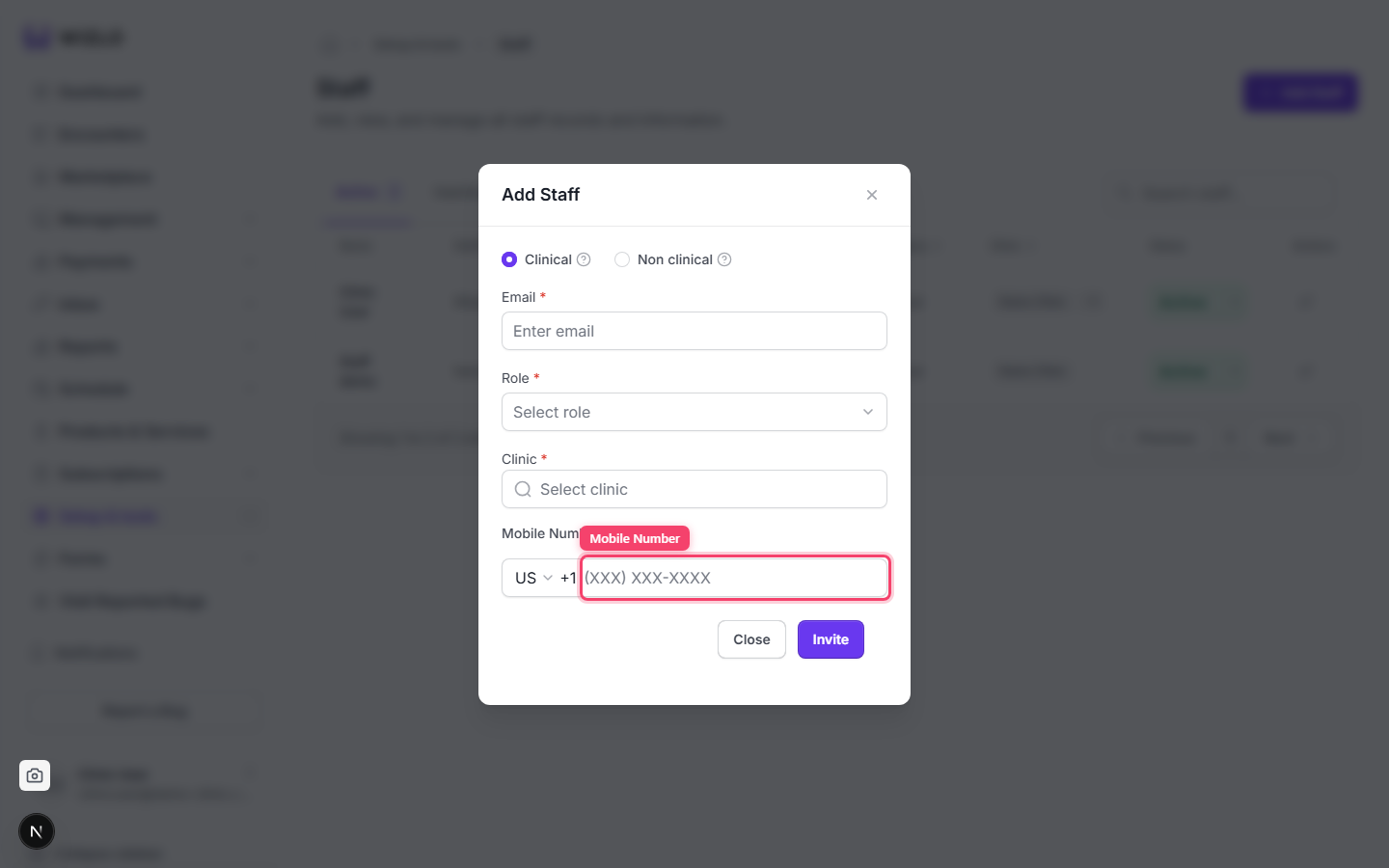
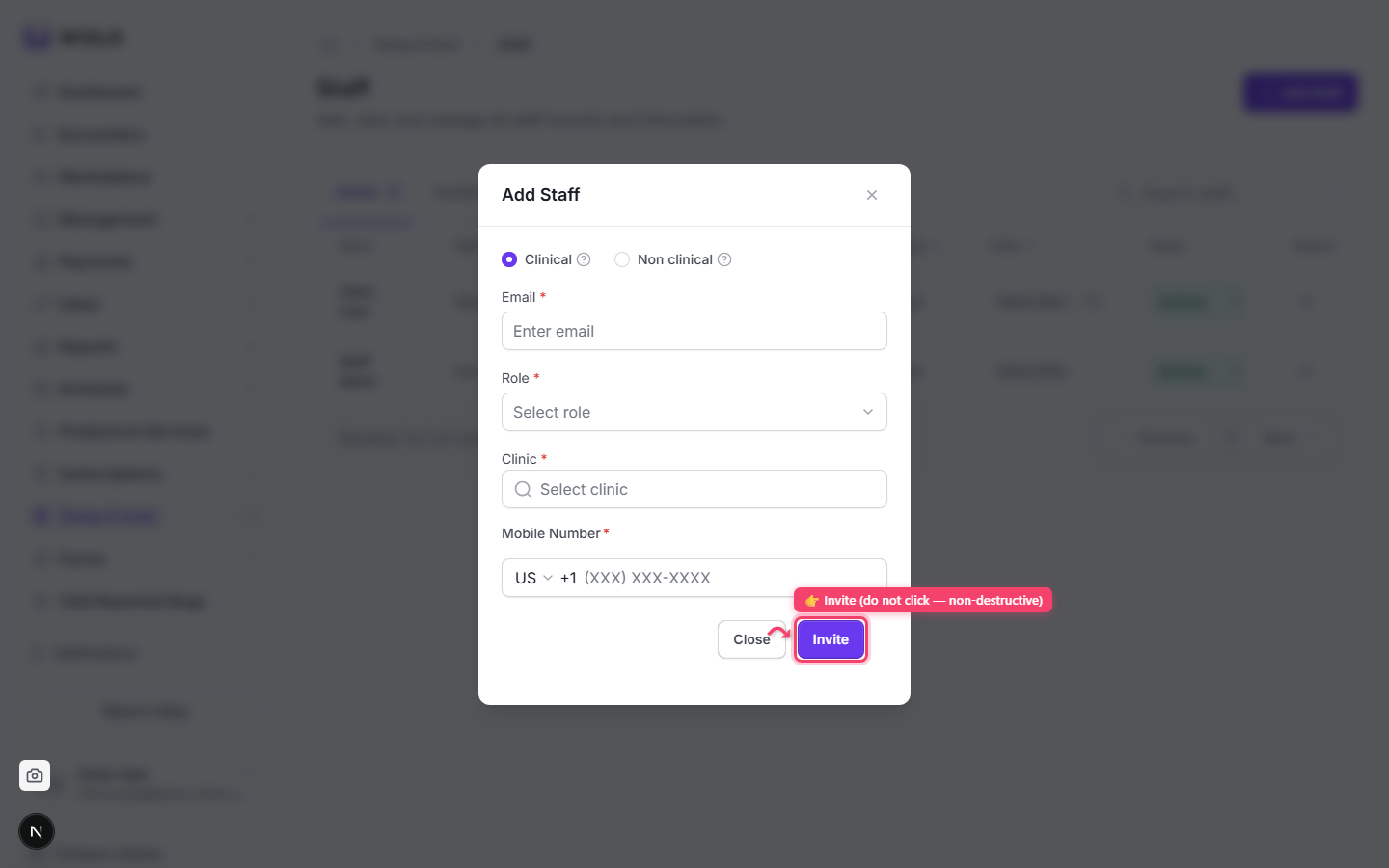
Step 5: Click the primary 'Invite' button at the bottom (the other button is labeled 'Close', not 'Cancel') — don't actually click Invite when just walking through this. On success a 'Staff invited successfully!' toast appears and the person appears under the Invited tab.