How do I resend an invite, deactivate, or delete a staff member?
How do I resend an invite, deactivate, or delete a staff member?
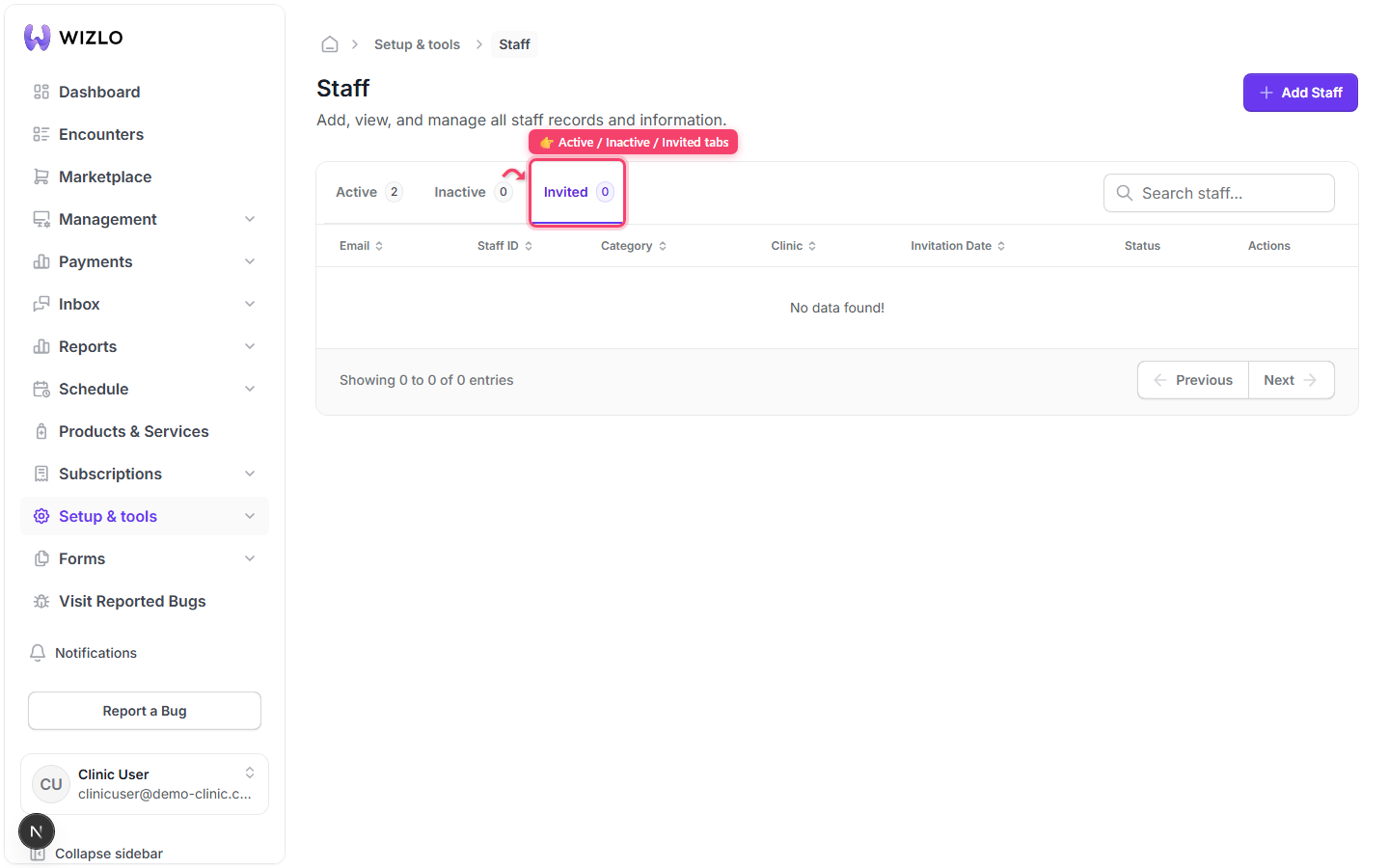
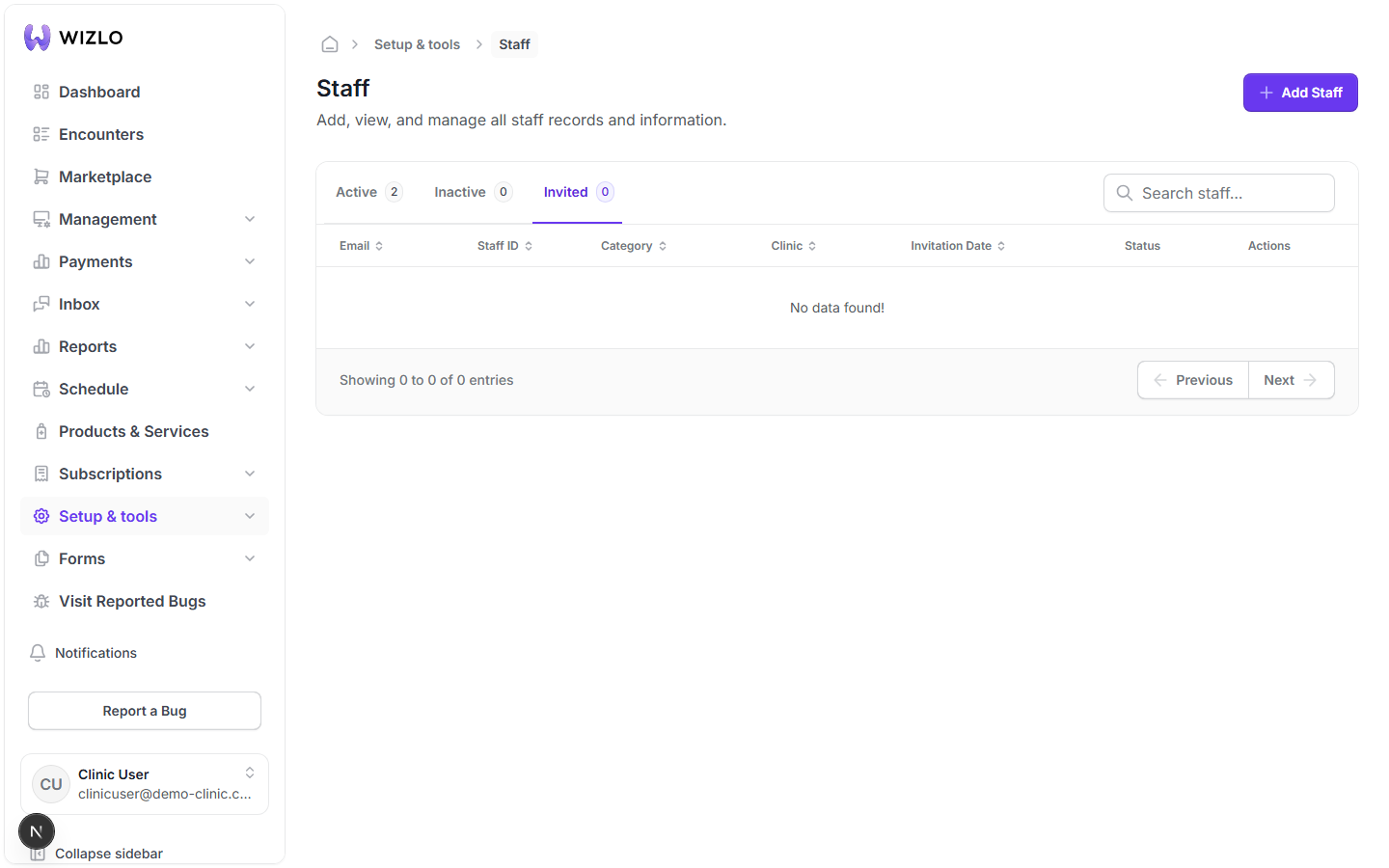
Step 1: Go to 'Setup & tools' → 'Staff' (/setup/staff). Three tabs sit above the table — Active, Inactive, Invited — each with a live count badge. The selected tab is driven by the `status` query param (values active|inactive|invited read via `searchParams.get('status')`), so a tab can also be reached by opening /setup/staff?status=invited directly instead of clicking it.
How do I resend an invite, deactivate, or delete a staff member? — Step 1: Go to 'Setup & tools' → 'Staff' (/setup/staff). Three tabs sit above the table — Active, Inactive, Invited — each with a live count badge. The selected tab is driven by the `status` query param (values active|inactive|invited read via `searchParams.get('status')`), so a tab can also be reached by opening /setup/staff?status=invited directly instead of clicking it.
Step 2: Resend invite: on the Invited tab, each row has three icon buttons in its Actions column — a pencil (Edit), a paper-plane (Resend Invite), and a trash can (Delete). These are real accessible buttons (aria-label set to the tooltip text), unlike the Roles page's icons. Click the paper-plane icon to resend that person's invitation email — confirms with a 'Resend invite email sent successfully.' toast.
How do I resend an invite, deactivate, or delete a staff member? — Step 2: Resend invite: on the Invited tab, each row has three icon buttons in its Actions column — a pencil (Edit), a paper-plane (Resend Invite), and a trash can (Delete). These are real accessible buttons (aria-label set to the tooltip text), unlike the Roles page's icons. Click the paper-plane icon to resend that person's invitation email — confirms with a 'Resend invite email sent successfully.' toast.
Step 3: Delete: still on the Invited tab, click the trash-can icon — opens a 'Delete staff' confirmation dialog reading '...delete "<email>". This action cannot be undone.' with a red 'Delete' confirm button; don't actually confirm when just exploring.
How do I resend an invite, deactivate, or delete a staff member? — Step 3: Delete: still on the Invited tab, click the trash-can icon — opens a 'Delete staff' confirmation dialog reading '...delete "<email>". This action cannot be undone.' with a red 'Delete' confirm button; don't actually confirm when just exploring.
Step 4: Closing the dialog without confirming leaves the invited staff member untouched.
How do I resend an invite, deactivate, or delete a staff member? — Step 4: Closing the dialog without confirming leaves the invited staff member untouched.
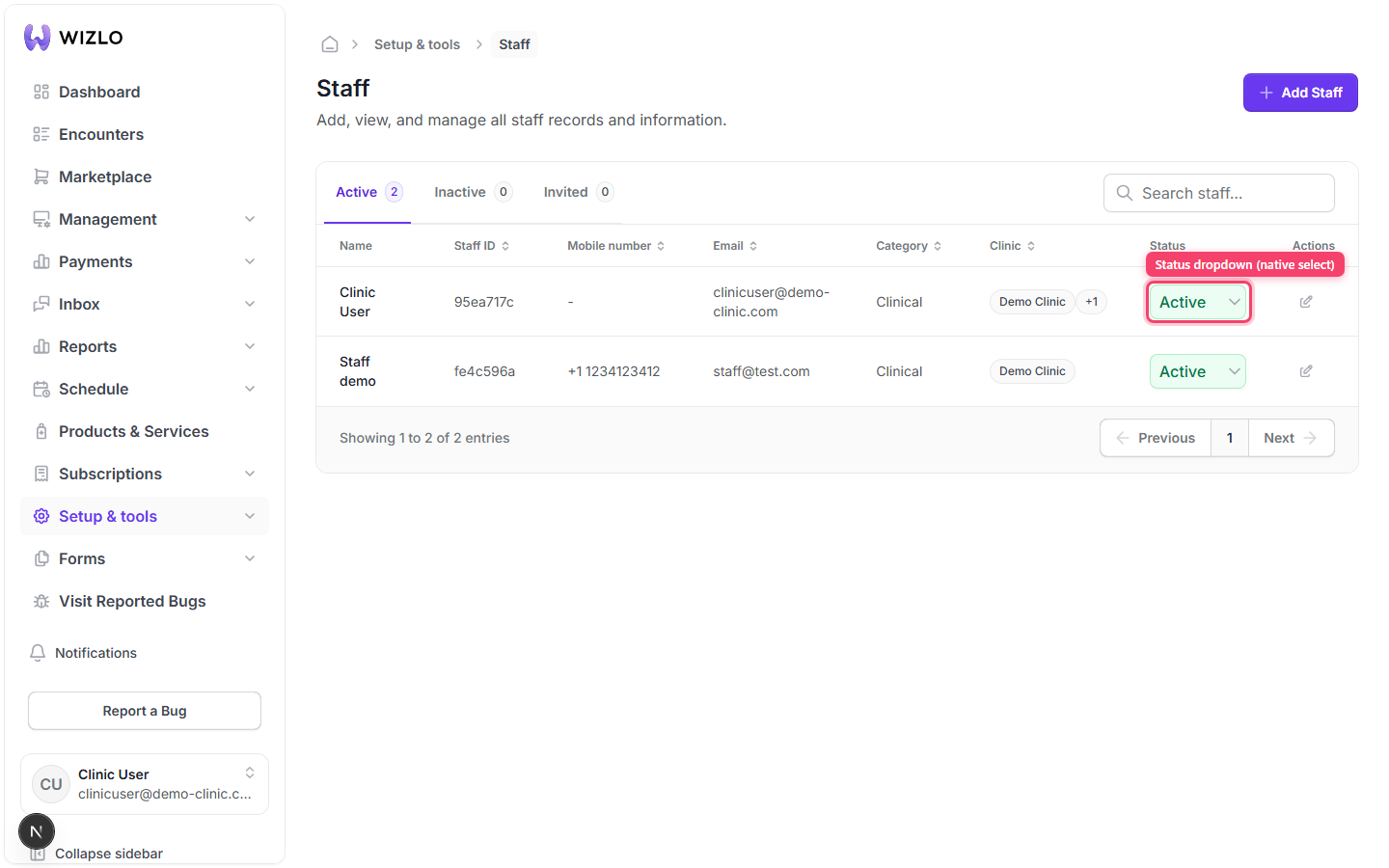
Step 5: Deactivate / Activate: switch to the Active or Inactive tab. Each row's Status column is a small native dropdown (not a menu) showing the current state; opening it and selecting the other option (Deactivate on an Active row, Activate on an Inactive row) pops a confirmation dialog titled 'Deactivate Staff?' or 'Activate Staff?' before the change is applied.
How do I resend an invite, deactivate, or delete a staff member? — Step 5: Deactivate / Activate: switch to the Active or Inactive tab. Each row's Status column is a small native dropdown (not a menu) showing the current state; opening it and selecting the other option (Deactivate on an Active row, Activate on an Inactive row) pops a confirmation dialog titled 'Deactivate Staff?' or 'Activate Staff?' before the change is applied.
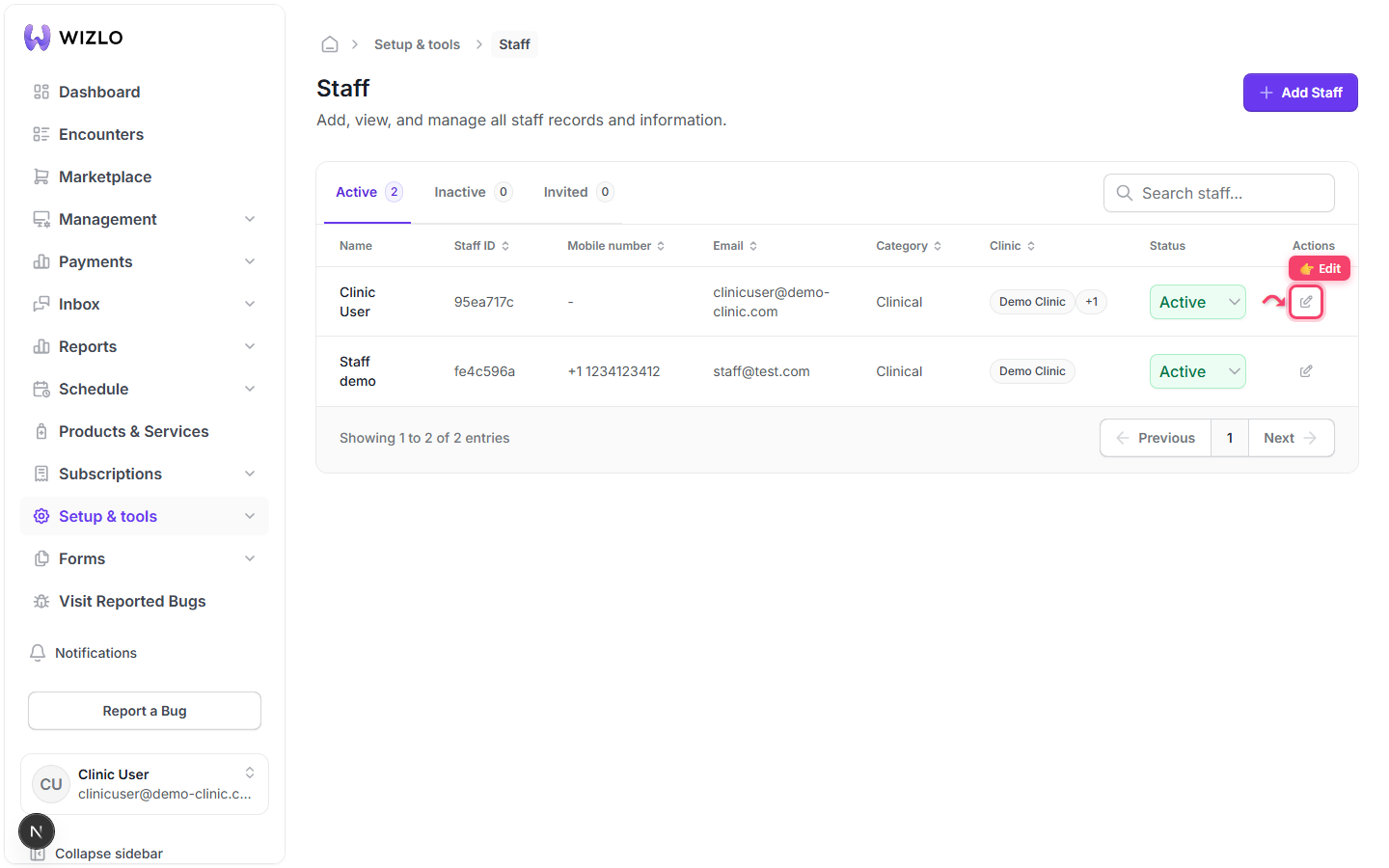
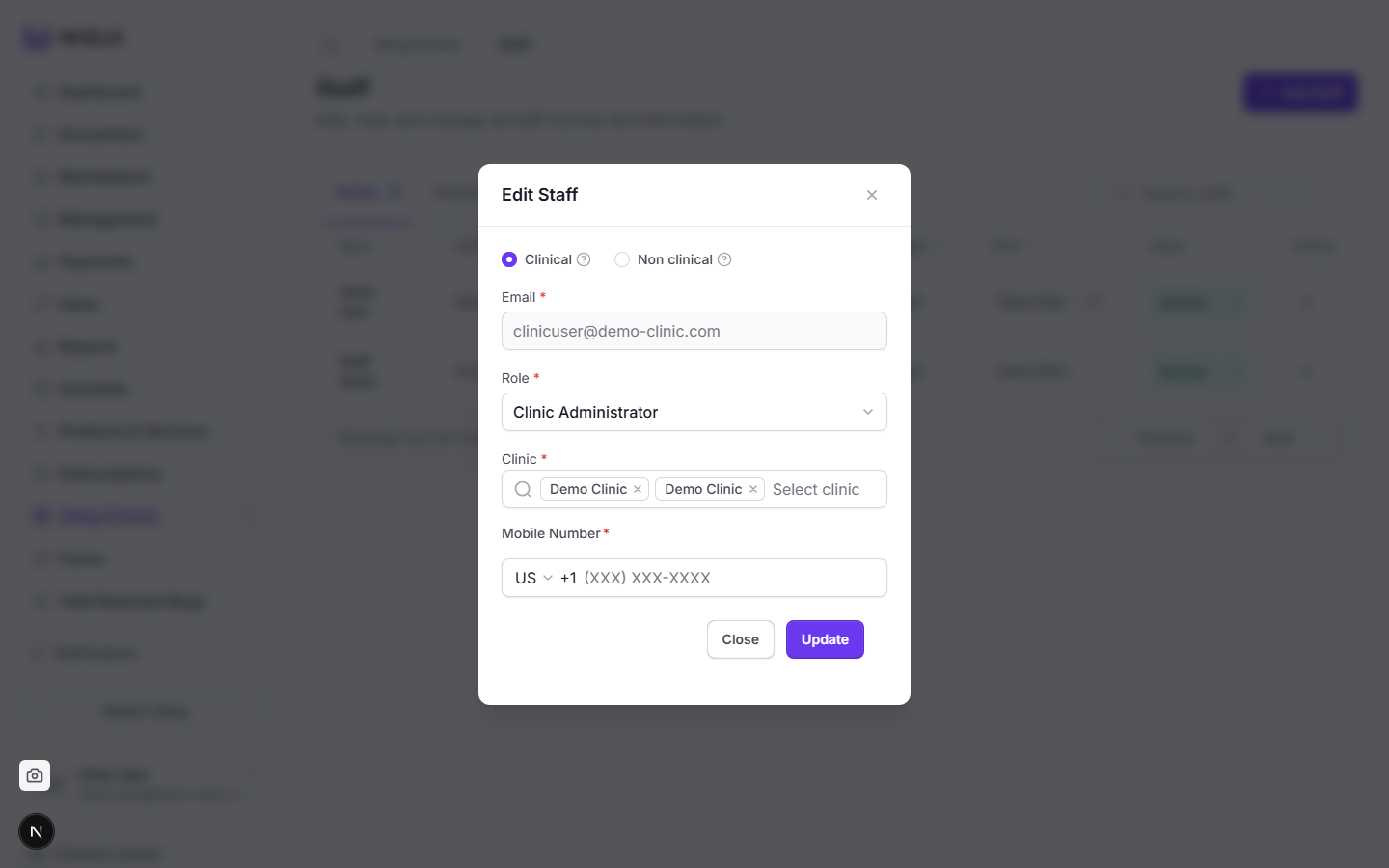
Step 6: Edit: on the Active or Invited tab, click the pencil icon to reopen the same modal used for adding staff, but titled 'Edit Staff' with an 'Update' submit button instead of 'Invite' (the Email field is disabled/locked once it has a value). Note the Inactive tab shows no action icons at all, and only the Invited tab exposes Resend Invite / Delete.
How do I resend an invite, deactivate, or delete a staff member? — Step 6: Edit: on the Active or Invited tab, click the pencil icon to reopen the same modal used for adding staff, but titled 'Edit Staff' with an 'Update' submit button instead of 'Invite' (the Email field is disabled/locked once it has a value). Note the Inactive tab shows no action icons at all, and only the Invited tab exposes Resend Invite / Delete.
Step 7: Close the Edit Staff modal without saving.
How do I resend an invite, deactivate, or delete a staff member? — Step 7: Close the Edit Staff modal without saving.
How do I resend an invite, deactivate, or delete a staff member? · Wizlo Help